

The Planner: how it works
Esta página aún no está disponible en tu idioma.
| Why | Keep the whole property in front of you and run the day — arrivals, departures, payments — from one screen. |
| Who | Front desk staff, administrators, and hotel owners. |
| What you’ll get | You can read the calendar grid: bookings by room type in four view modes, run the day’s arrivals and departures, move bookings by drag and drop, and know what to do with a double-booking conflict. |
| Limitations | This is an overview, not a step-by-step guide — creating a booking straight from the grid is covered in “Create a booking in 4 clicks”. |
The Planner — the tab in the left menu — is the front desk’s working screen in HotelsCalendar PMS. Every booking in the property is a bar at the crossing of a room row and a date column. Bookings from your website and from channels arrive here automatically, so the picture never goes stale.
What you see
Section titled “What you see”Rows of the grid are the property’s rooms, grouped by type (category); columns are dates. A booking occupies its date range on its room’s row: the bar shows the guest, the number of guests and nights, and the payment state; channel bookings carry a source badge (Booking.com, Expedia, Airbnb).
The view stretches through time with four modes: Day, Week, 2 weeks, and Month. Above the grid sits a day summary: how many arrivals and departures are due today, how many guests are in house, and how much is unpaid on today’s bookings. The same toolbar holds the search by guest and booking code and the Prices in cells toggle — more on that below.
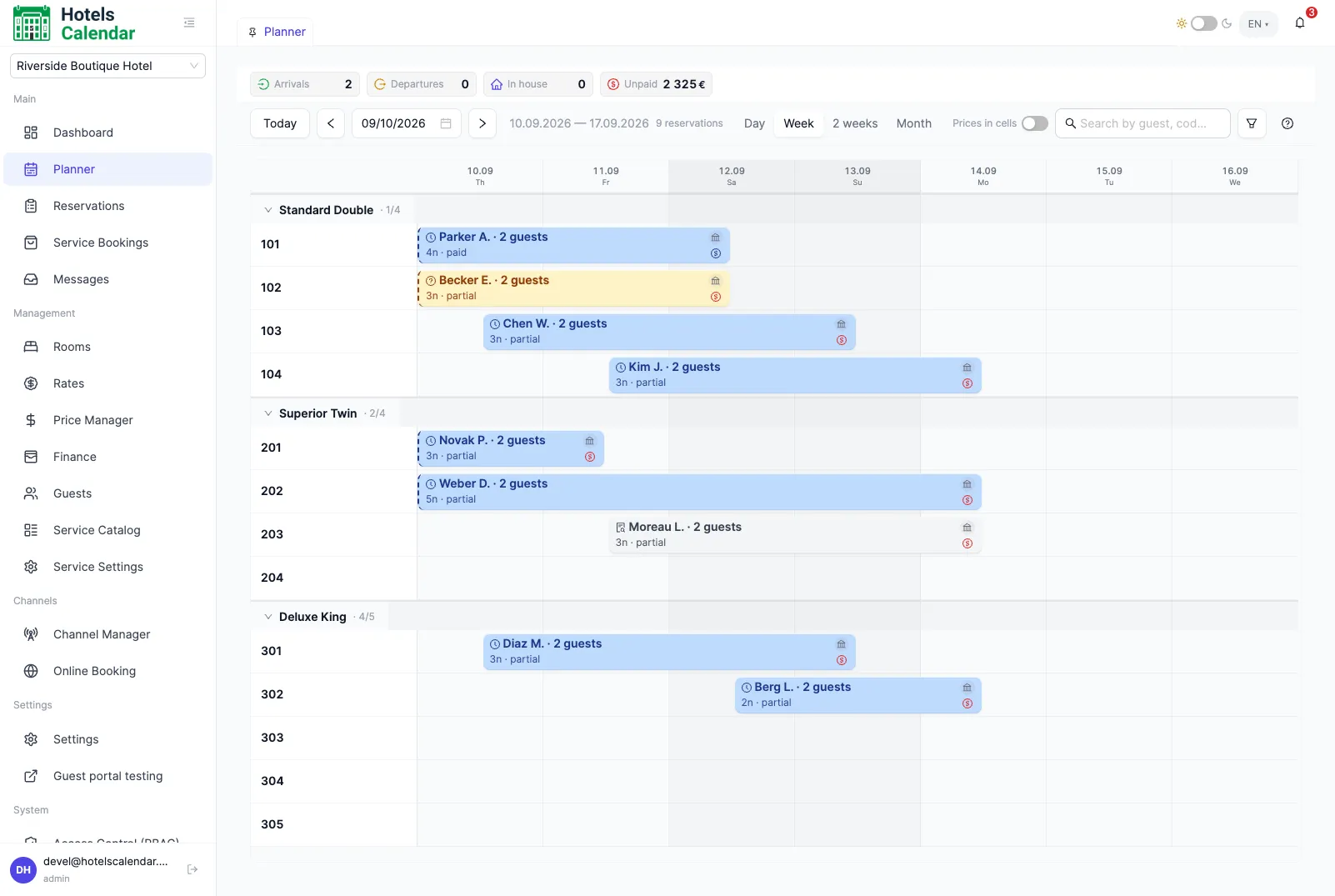
Today’s arrivals and departures
Section titled “Today’s arrivals and departures”In Day mode, the grid is joined by the arrivals and departures queues for today — today’s bookings with quick actions. Checking a guest in from the queue takes one or two clicks: the room is assigned in advance.
Day alerts nudge you about what needs attention — seven types: unpaid arrivals; likely no-shows; bookings whose unguaranteed status is about to expire; bookings without an assigned room; VIP guests; rooms not ready for check-in; overdue check-outs.
On check-out, a room automatically becomes due for cleaning in the background — the interface does not display room statuses.
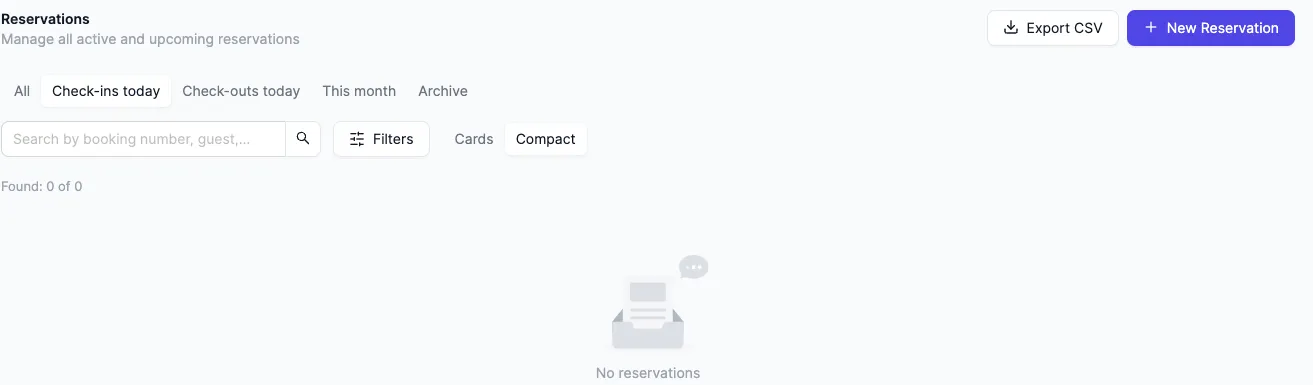
The second way into the day’s arrivals is the bookings list: the “Arrivals today” and “Departures today” quick filters show the guest, stay dates, status, and source in one row.
Moving bookings
Section titled “Moving bookings”A booking moves by drag and drop to another room or other dates — the grid updates on the spot. The move won’t go through if the room is taken or the rate plan’s restrictions are violated: the grid rolls back and the booking stays where it was. If a move would affect manual prices or manual meals, the system asks for confirmation first and shows the recalculated total.
Dragging the edge of a bar stretches or shrinks the booking: the departure date changes, and the new total is recalculated on the spot.
And an honest caveat: not every booking can be dragged. Channel bookings (when manual moves are switched off for them), group bookings, and bookings of five or more rooms don’t move by mouse — they open in the booking card. That is how the system guards against falling out of sync with the channels.
Double-booking conflicts
Section titled “Double-booking conflicts”A double booking is an accidental sale of the same room twice: for example, a channel sold the room at the very moment the front desk placed it. Such collisions are rare but can’t be ruled out entirely — which is why a sale beyond availability doesn’t go unnoticed: double bookings surface for handling right in the Planner.
The conflict is visible on the grid: clicking it opens the list of conflicting bookings, and one of them can be moved to a free room of the same type — after the move, every guest has a room of their own again.
Prices in cells
Section titled “Prices in cells”The Prices in cells toggle above the grid switches the calendar into its pricing view: free cells show the price and availability for each date. Price and free rooms sit on one screen, so you can cross-check them without leaving the grid. Prices themselves are edited in the price manager — that is a separate article in the rates section.
See also
Section titled “See also”- Create a booking in 4 clicks — place a booking straight from the calendar grid.
- Change prices: one date or in bulk — where the prices shown in the pricing view are edited.
- Check-in and check-out — how to check a guest in and check them out on departure day.
- Walk-in guest: from front desk to the key — take in a guest who arrives without a booking: a free room, the booking, and check-in on the spot.
- If a double booking appears — what to do when the same room is sold twice.