

Change prices: one date or in bulk
Questi contenuti non sono ancora disponibili nella tua lingua.
| Why | Change prices without editing every cell by hand: one date at a time, or a whole period in bulk. |
| Who | Hotel administrators and owners who set and maintain prices. |
| What you’ll get | The price for a date changes in one click in the price manager; every bulk change is previewed before it is applied; you can read the price calendar and overview and set selling restrictions. |
| Limitations | The numbers on the screenshots are demo data. Stop-sell is not covered here — it is a channels story; see the Channel Manager article. |
A room price is set for the combination of rate plan, room category, occupancy variant, and date. An occupancy variant is the party makeup, such as “2 adults”. How rate plans, meals, and these options work is covered in the other article of this section; here we focus on the prices themselves: where to change them one date at a time, where to change them in bulk, and how to keep control over every change.
Change the price for a date
Section titled “Change the price for a date”A one-off edit is made in the price manager, directly in its calendar:
- Open “Price Manager” in the left menu — the Calendar tab opens.
- Pick a rate plan, room categories, and a start date — the calendar shows prices per category and occupancy variant from that date on.
- Click a price cell in the row of the occupancy variant you need — an editor opens right in the cell: the price field and, next to it, restriction fields.
- Type the new price and confirm — saving is instant, there is no separate “save” step. The new price appears in the cell immediately and applies to that date.
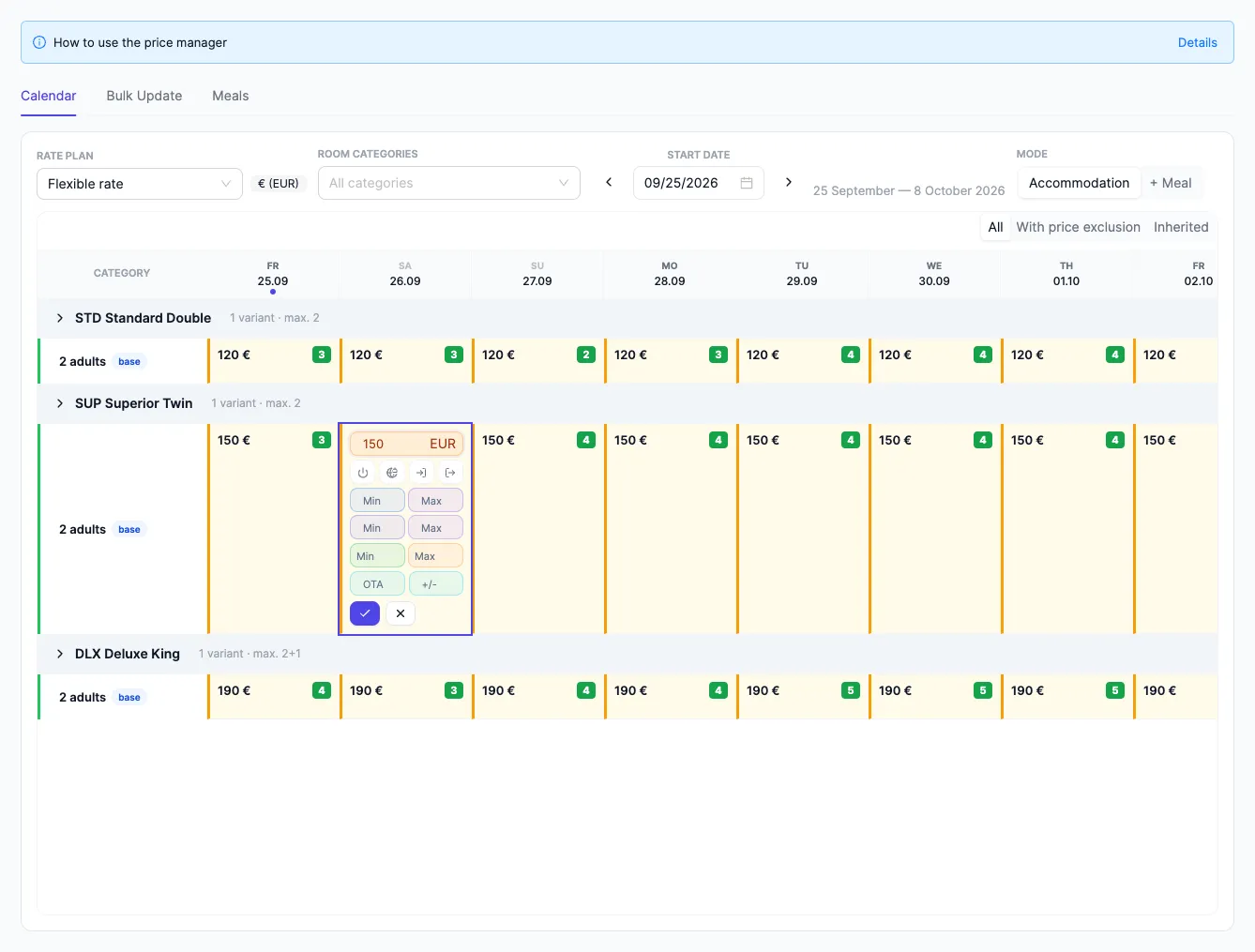
The screenshot shows the price manager calendar: the rate plan, categories, and start date in the filters; room categories with their occupancy variants as rows; dates as columns. The editor is open right in the cell — the price and restrictions for that date are changed without leaving the page.
Meal prices are managed in the same manager — the ”+ Meal” mode sits next to the accommodation mode switch.
Bulk change
Section titled “Bulk change”When prices need to move for a season, weekends, or holidays, use the Bulk Update tab:
- Open the “Bulk Update” tab.
- Set the scope: the rate plan, the from–to period, room categories, days of week (with “Weekdays”, “Weekends”, “All” shortcuts) and, if needed, excluded dates.
- In the “Prices” section choose how to change them: “Set price”, ”+/− amount”, or ”+/− percent”. One value can be set “For all”, with individual overrides for separate categories.
- If needed, open the “Restrictions” section and set them for the same period — more on restrictions below.
- Before applying, check the preview: the system highlights the affected dates and shows the changes; the “Recalculate” button refreshes the picture for the current settings.
- Apply the changes — prices update across all selected dates at once: each selected date shows the new price in the calendar.
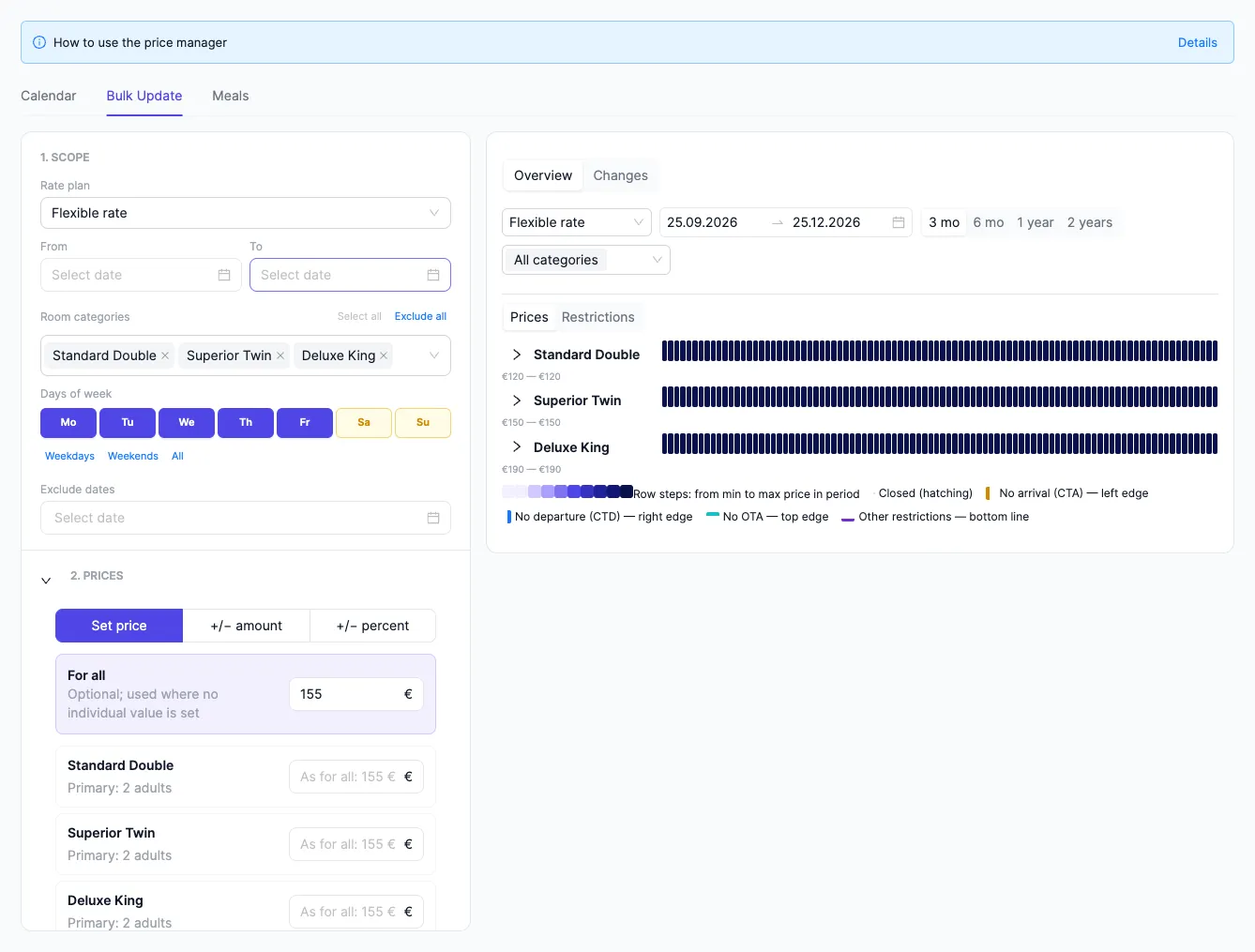
The screenshot shows the bulk update screen: the scope (period, categories, days of week) and the ways to change prices on the left, the “Changes” preview tab on the right — affected dates highlighted with restriction marks. You see the changes before applying them, so a bulk edit never has to be a blind one.
Overview and preview
Section titled “Overview and preview”Next to bulk edits is the “Overview” panel: the selected rate’s prices over a long period (about three months). Seasonality is visible at a glance — empty dates and price peaks — without scrolling the calendar two weeks at a time.
The “Changes” panel shows the result of a bulk update before it is applied: the “Recalculate” button and the “Prices”/“Restrictions” switch. How to read the grid and the panels — in The price calendar: how to read and use it.
Sales restrictions
Section titled “Sales restrictions”Restrictions are conditions for selling a specific date. They are set in the price manager — in the cell editor and in the “Restrictions” section of the bulk update:
- Minimum stay (min stay) — the shortest allowed length of stay: an arrival on this date is only possible if the stay is not shorter than the set number of nights.
- Maximum stay (max stay) — the ceiling on the length of stay.
- Closed to arrival (CTA) — a stay cannot start on this date.
- Closed to departure (CTD) — a stay cannot end on this date.
Stop-sell is a different story: it is a ban on selling a date through connected channels, and it lives in channel distribution, not in the price calendar. How that works — in the Channel Manager article.
See also
Section titled “See also”- Rate plans: how they work — the rate plan tree, meal plans, and occupancy variants that prices are calculated for.
- Channel Manager — syncing prices, availability, and restrictions with channels.